
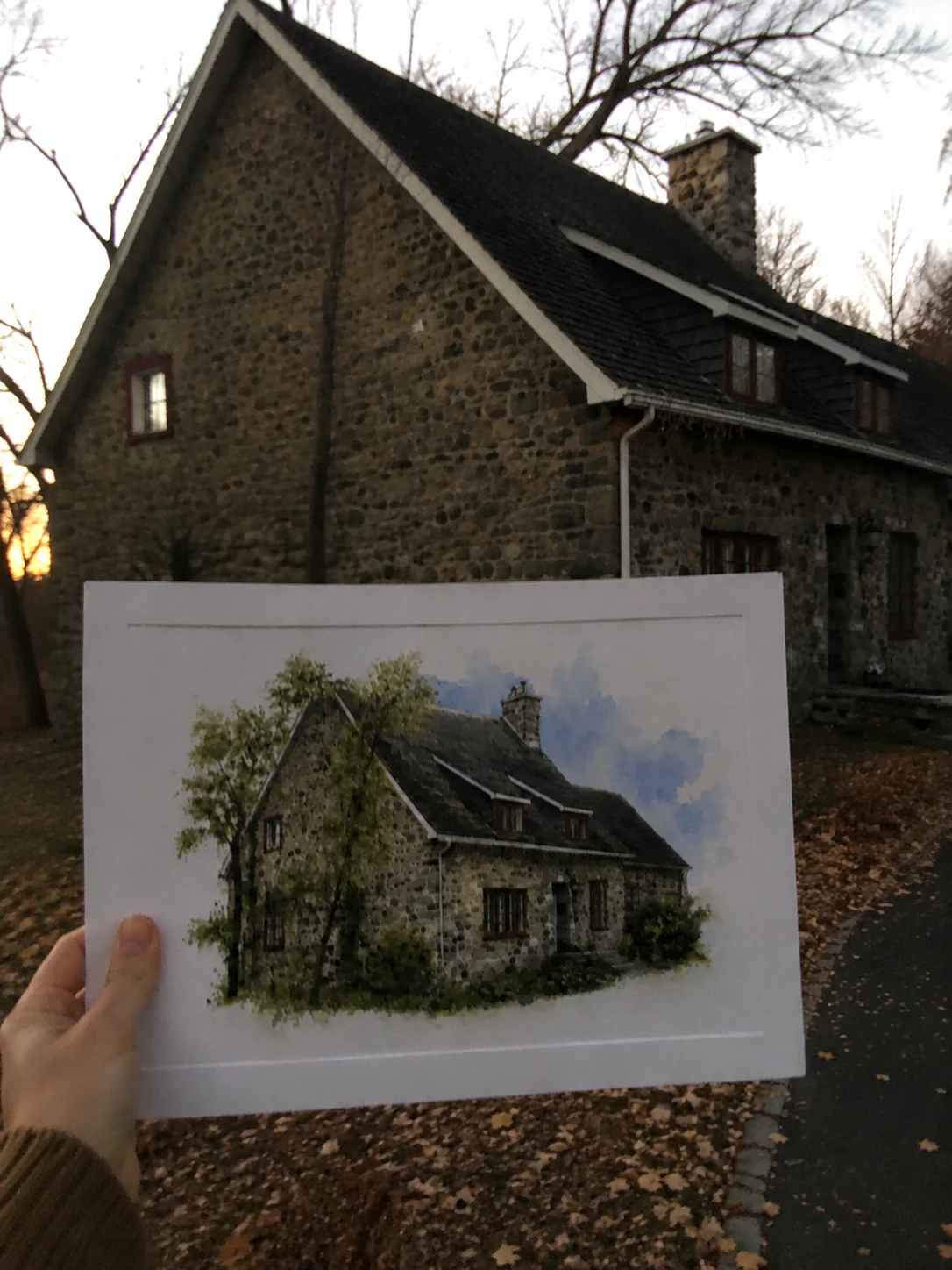
To sell personalized house portraits on Shopify, turn one home photo into a focused wall-art offer, show the illustration and optional text on the actual product before checkout, and send the approved artwork to the exact supplier variant. The strongest listings make the occasion and the production limits obvious.
What is the product?
The product is a custom house portrait print. A shopper uploads a photo of a home, chooses an illustration style, and adds an optional family name, address line, or date. You sell the result as a poster, framed poster, or canvas.
Start with one house, one orientation, one illustration style, and one wall-art variant. A narrow product keeps the photo guidance, composition, text placement, and print template testable. Expand to venues, apartments, storefronts, or multiple styles only after the first product works for real customer photos.
Build a house-portrait product free
Why would shoppers buy it?
A home carries a place, a date, and a memory. Buyers may be marking a first home, move, renovation, wedding venue, holiday property, or childhood address. That story gives the product a concrete buying occasion before you mention AI or watercolor.
The shopper is not only buying an illustration. They are checking whether the roofline, windows, door, and recognisable details still feel like their home. They also need confidence that their chosen name or date will be legible and that the approved preview is the file that gets printed.
Shopify’s print-on-demand guidance explains that suppliers can produce and ship a product after the order, so a merchant does not need to hold finished inventory. Your responsibility remains the same: explain the input, show the result, and validate the production surface. See Shopify’s custom poster workflow for the category context.
What result should the merchant expect?
The dream outcome is a premium gift product that can be launched from a repeatable recipe rather than a designer conversation for every order. A good first version gives you:
- one listing built around a clear occasion;
- a photo guide that prevents most avoidable failures;
- a preview that shows the artwork, crop, text, and product together;
- a controlled production file tied to the chosen Shopify variant;
- enough cost visibility to decide whether the product is a standard offer or a reviewed premium service.
Do not promise that every building photo will produce the same level of detail. State what photos work, show how the result is approved, and give the buyer a correction path.
Example: an 8 × 10 inch framed house portrait
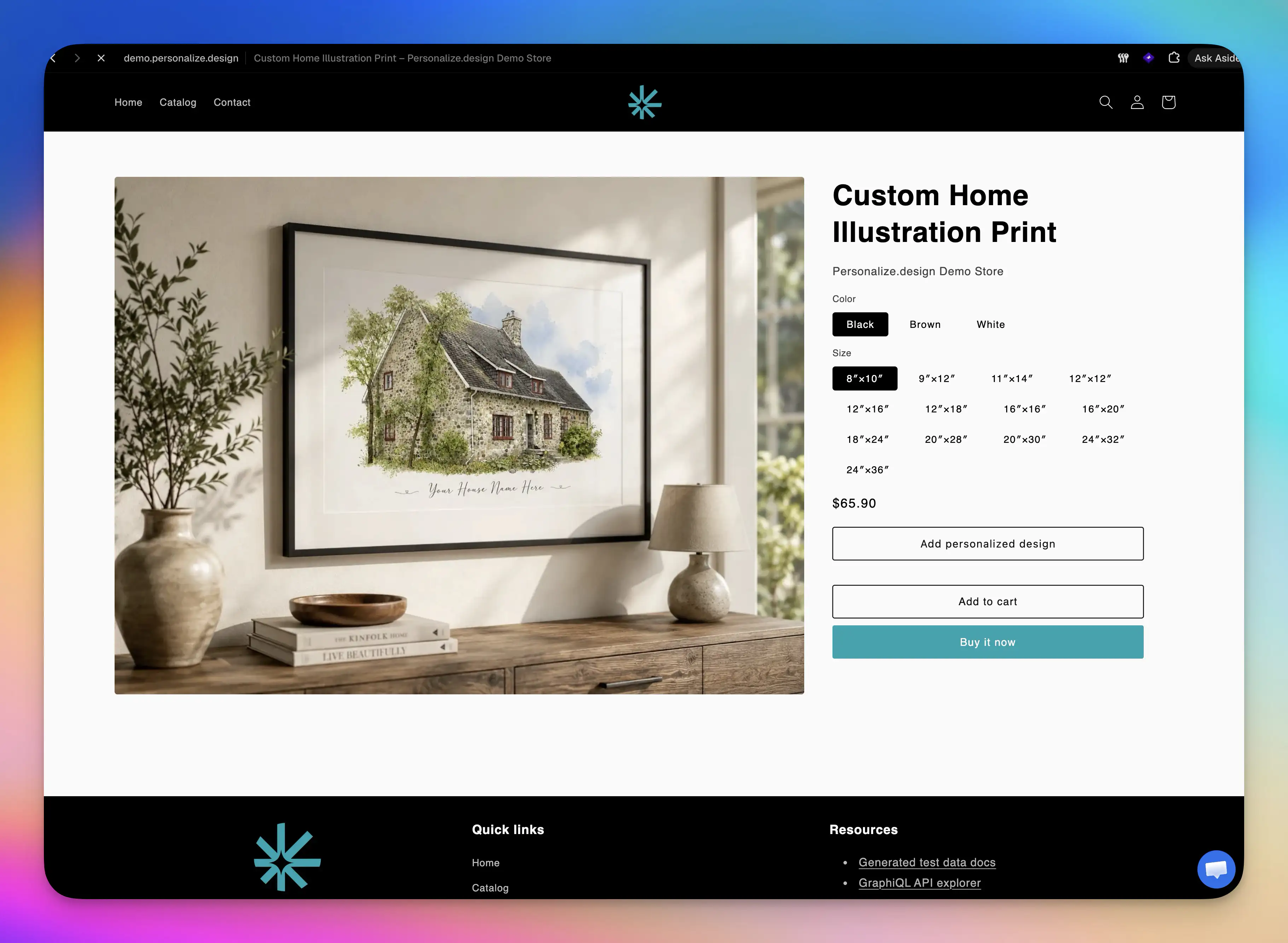
Sell a watercolor house portrait as an 8 × 10 inch framed poster. The shopper uploads one front-facing photo, adds a family name and optional date, and chooses a light or dark text treatment. The Blueprint preserves the roofline, windows, doors, and visible architectural details while simplifying distractions such as cars or bins.
The product preview should show the artwork, crop, frame colour, name, and date before checkout. The approved artwork remains attached to the order. The production asset contains only the print design and matches the supplier variant used in the preview.
How to launch it step by step
- Choose the buying occasion. Start with one message for a housewarming, first-home gift, wedding venue, or moving-away keepsake.
- Choose the exact wall-art product. Record orientation, print area, bleed, safe area, available sizes, frame options, shipping, and production cost.
- Set the photo rules. Ask for the full facade and roofline in good light. Explain how cars, trees, deep shadows, and severe angles can affect the result.
- Build the AI Blueprint. Define the illustration style, crop, background, architectural details to preserve, distractions to remove, and text area.
- Test difficult homes. Include apartments, narrow townhouses, dark brick, white walls, foliage, snow, angled photos, and long address text.
- Connect the Shopify product. Test upload, generation, preview, approval, cart, checkout, and order creation in one session.
- Validate the production file. Compare the approved asset with the supplier template and the variant shown in the preview. Keep generic mockup dimensions out of the production handoff.
- Order a sample. Inspect detail, text size, colour, crop, placement, frame, packaging, and delivery time before launching ads.
Use the Shopify product-personalizer guide for the app workflow and the POD personalization guide for supplier checks.
Set photo guidelines before the Blueprint
A usable house photo shows the full facade and roofline, enough light on the windows and door, and enough space around the edges for the chosen crop. Tell shoppers what happens when a photo is dark, tightly cropped, heavily angled, or blocked by trees, cars, or deep shadows. If you accept several photos, explain how they will be combined instead of promising an exact reconstruction.
Build and refine the Blueprint
Start from a house-portrait style or product idea that already makes sense on Etsy. Use it to understand the occasion, illustration treatment, format, and listing structure. Do not copy another seller’s artwork or listing.
Use a reference image you own or have permission to use when you need to communicate the watercolor treatment, layout, or level of detail. Create the first Blueprint in Personalize.design, generate a test, and inspect the roofline, windows, doors, crop, background, and text. Then iterate on the instructions, reference image, model, input rules, output format, or text layer until the result is ready for real house photos.
The AI design prompt generator can create a structured starting prompt from a reference design. Treat it as a starting point, then test the Blueprint with the homes and text lengths your product will accept.
Create a starting Blueprint with the AI design prompt generator
Check the output before fulfillment
Check every generation against the product you plan to sell:
- the roofline, windows, door, and important architectural details remain recognizable;
- the house is not cut off, distorted, or hidden by the background;
- the crop and composition fit the chosen poster ratio and print area;
- names, dates, and address lines stay legible inside the safe area;
- the approved artwork can become a clean print file without a room scene, frame, or mockup shadow.
The first output is a test, not a promise. Keep refining the Blueprint when a result looks good on screen but loses the house’s identity or will not print cleanly.
See the buyer experience
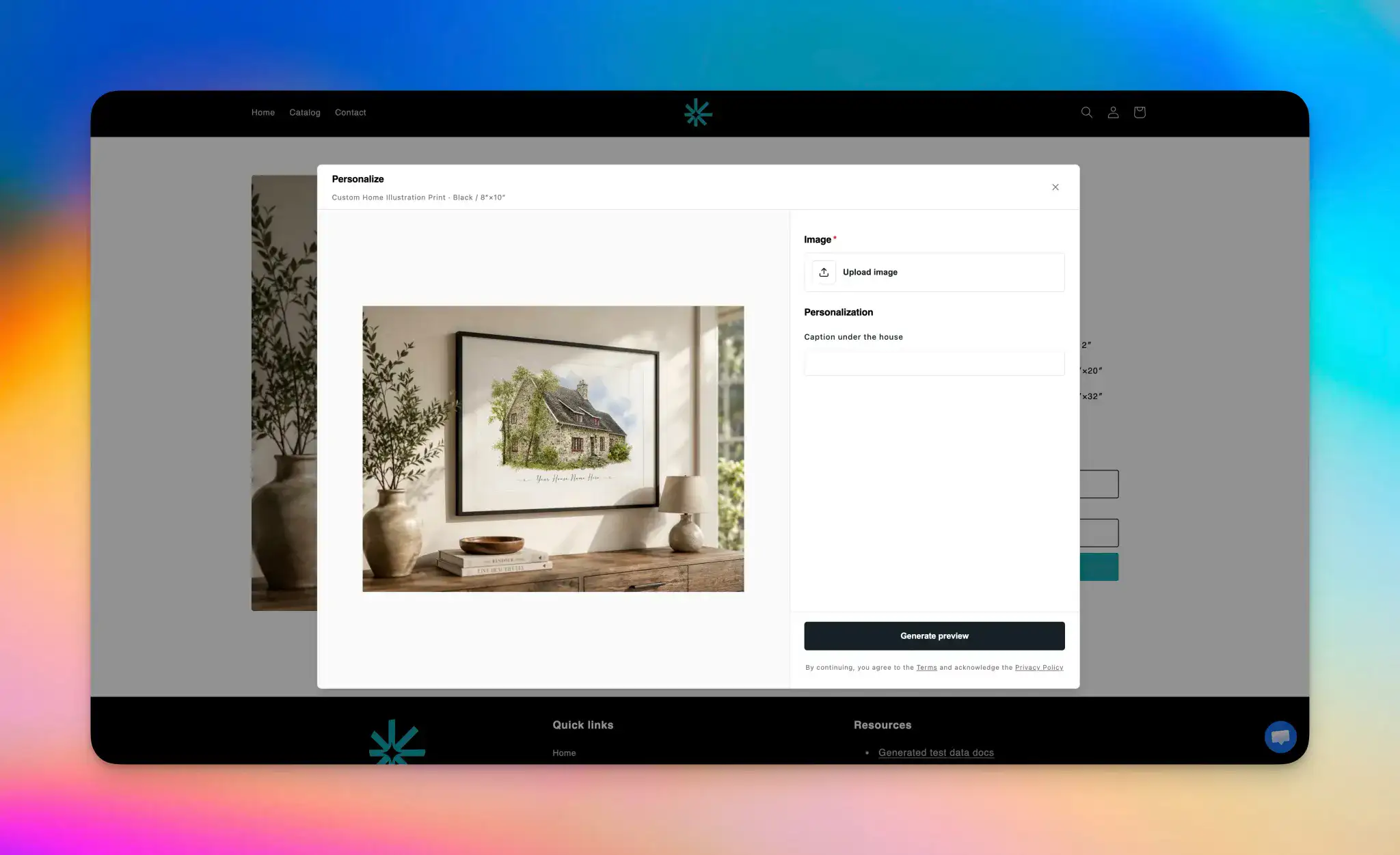
Want to see what the process looks like from the buyer’s side? Open the demo store: the shopper uploads an image, adds personalization details, generates a preview, and sees the final result on a real product mockup before checkout. This is the sequence your product page should make clear.
See the buyer experience in the demo store
What should the product page say?
Your listing should remove uncertainty around both the photo and the finished result. Put a source-home photo beside the illustration, then answer:
- Which buildings are supported: one house, apartment, venue, or storefront?
- What angle, lighting, and image quality work best?
- Can cars, bins, cables, trees, or people be removed?
- Which text fields are optional, and what are their character limits?
- Does the shopper approve the artwork before checkout?
- How many revisions are included?
- What are the production and delivery estimates for the selected variant?
Show the exact poster or framed product. A generic lifestyle mockup does not prove that the roofline, text, and crop work on the item the buyer will receive.
What can go wrong?
| Risk | Control to add before launch |
|---|---|
| The house is hidden by trees or a tight crop | Ask for the full facade and explain the minimum useful framing |
| Architectural details disappear | Test a reference set and define the details the Blueprint must preserve |
| Long names collide with the art | Set a character limit and place text in a controlled layer |
| The preview is not the actual wall-art surface | Render the chosen orientation and size with the real product mockup |
| The production file differs from approval | Lock the approved asset revision to the Shopify line item |
| The supplier variant changes | Hold the order for review instead of silently substituting a product |
What should you check before pricing it?
Include the blank product, printing, shipping, Shopify and payment fees, Personalize.design fees, AI generation, retries, support, refunds, and reprints. If a difficult photo needs manual review, price that work or narrow the product rules.
Model low, expected, and high-cost cases in the personalized product margin calculator. Publish dimensions only after checking the exact supplier product and print area; generic poster dimensions are not enough for a production promise.


