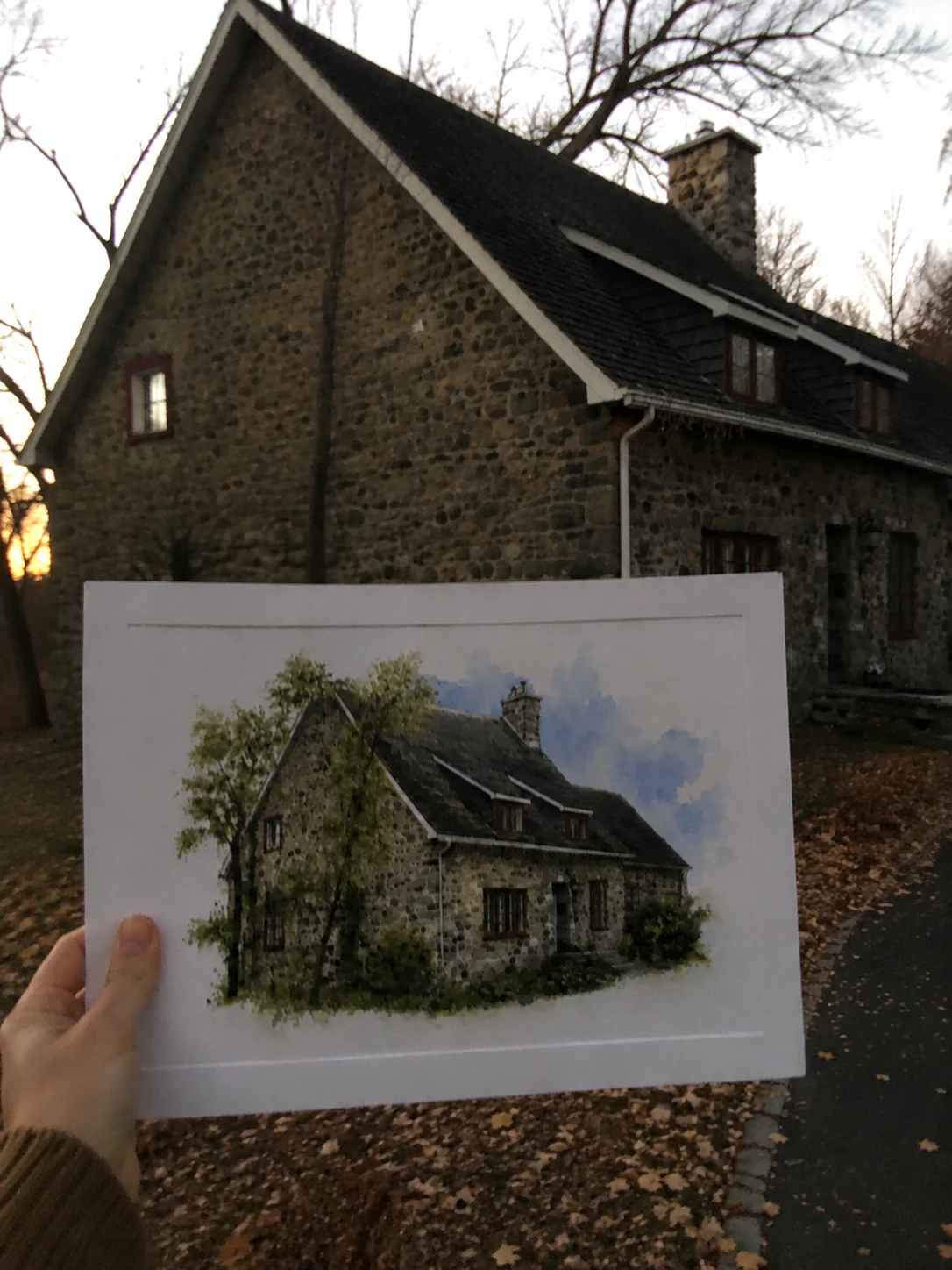

To sell personalized family posters on Shopify, start with one supported group size, give buyers clear photo rules, build a Blueprint around a concrete visual direction, and show the finished poster before checkout. The product turns a family moment into a specific gift. It also needs boundaries: every extra person, photo, or text field adds another way for the composition to fail.
What is the product?
The product is a custom family poster: a shopper provides a group photo or a small set of portraits, chooses a tested visual style, and adds a family name, date, or short phrase. You sell the finished artwork on one poster, framed print, or canvas format.
Start with a single composition and a stated maximum number of people. Do not begin with “any family, any pose, any number of pets, and any text.” A bounded offer lets you test faces, spacing, crop, type, and print area before you promise a larger catalog.
Build a family-poster product free
Why would shoppers buy it?
Family posters fit occasions that already have emotional weight: a new baby, anniversary, wedding, reunion, Mother’s Day, Father’s Day, or a move. The buyer wants the people, names, and date to feel recognisable, not like a generic family illustration with a name pasted on top.
The preview therefore matters as much as the image generation. Before paying, the shopper should see who is included, how the group is arranged, where the name and date sit, and what the chosen poster looks like. If one face is hidden or the text is too long, the correction needs to happen before checkout.
What result should the merchant expect?
The goal is a gift product with a higher perceived value than a blank poster, supported by a workflow that remains repeatable as orders arrive. A launch-ready version should give you:
- a clear audience and buying occasion;
- input guidance that reduces unusable photos;
- a predictable composition with a tested people limit;
- a product preview the shopper can approve;
- a cost model that accounts for extra subjects, retries, and failed orders.
The result is not “every family photo works.” It is a product with explicit boundaries, useful error messages, and a review path when a photo falls outside them.
Example: a family story poster
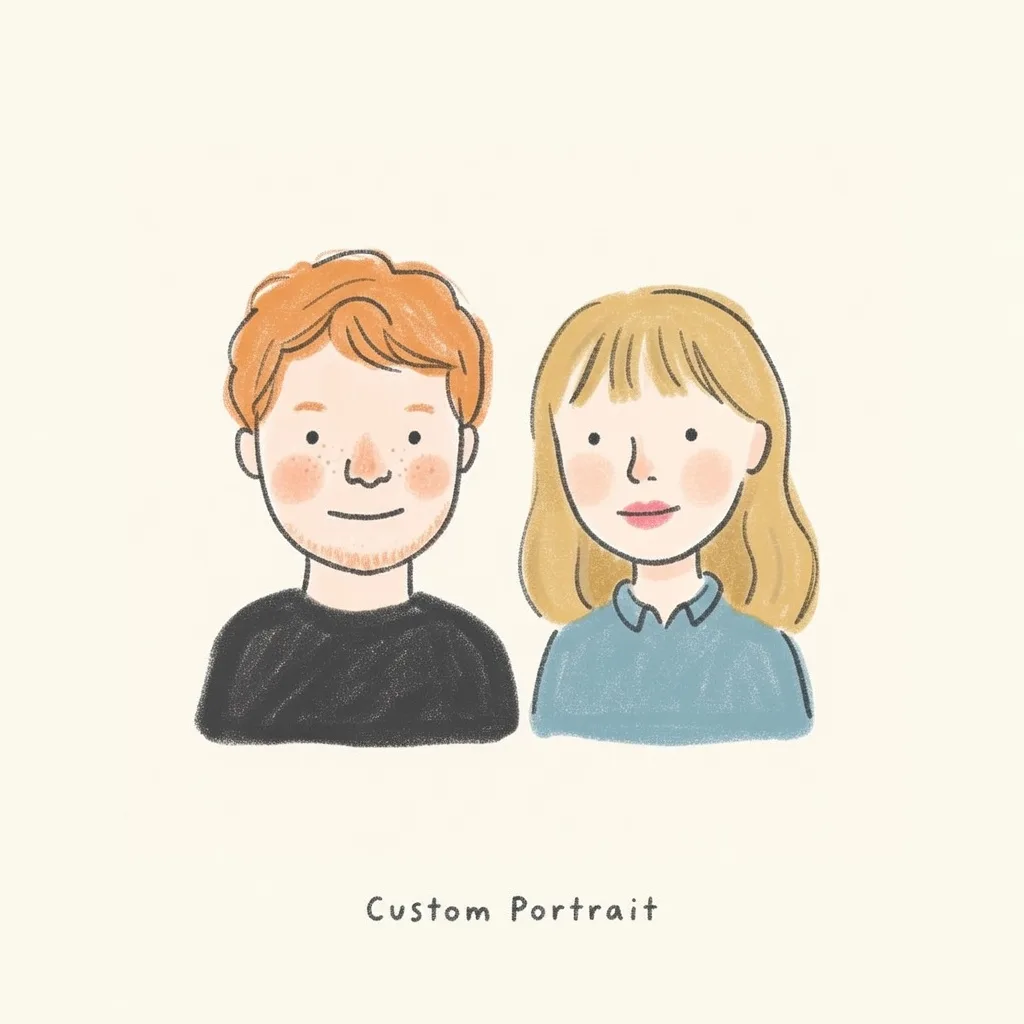
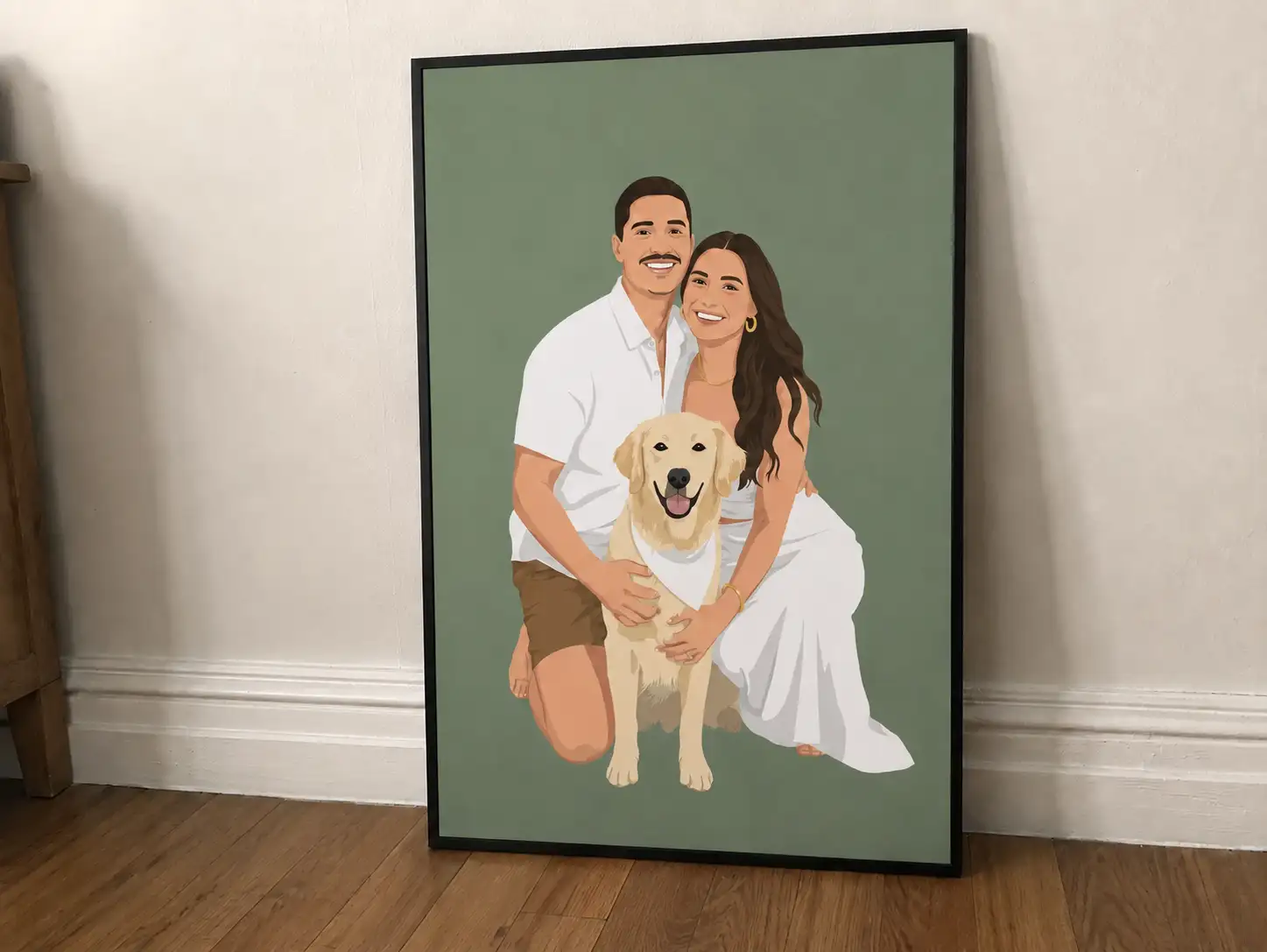
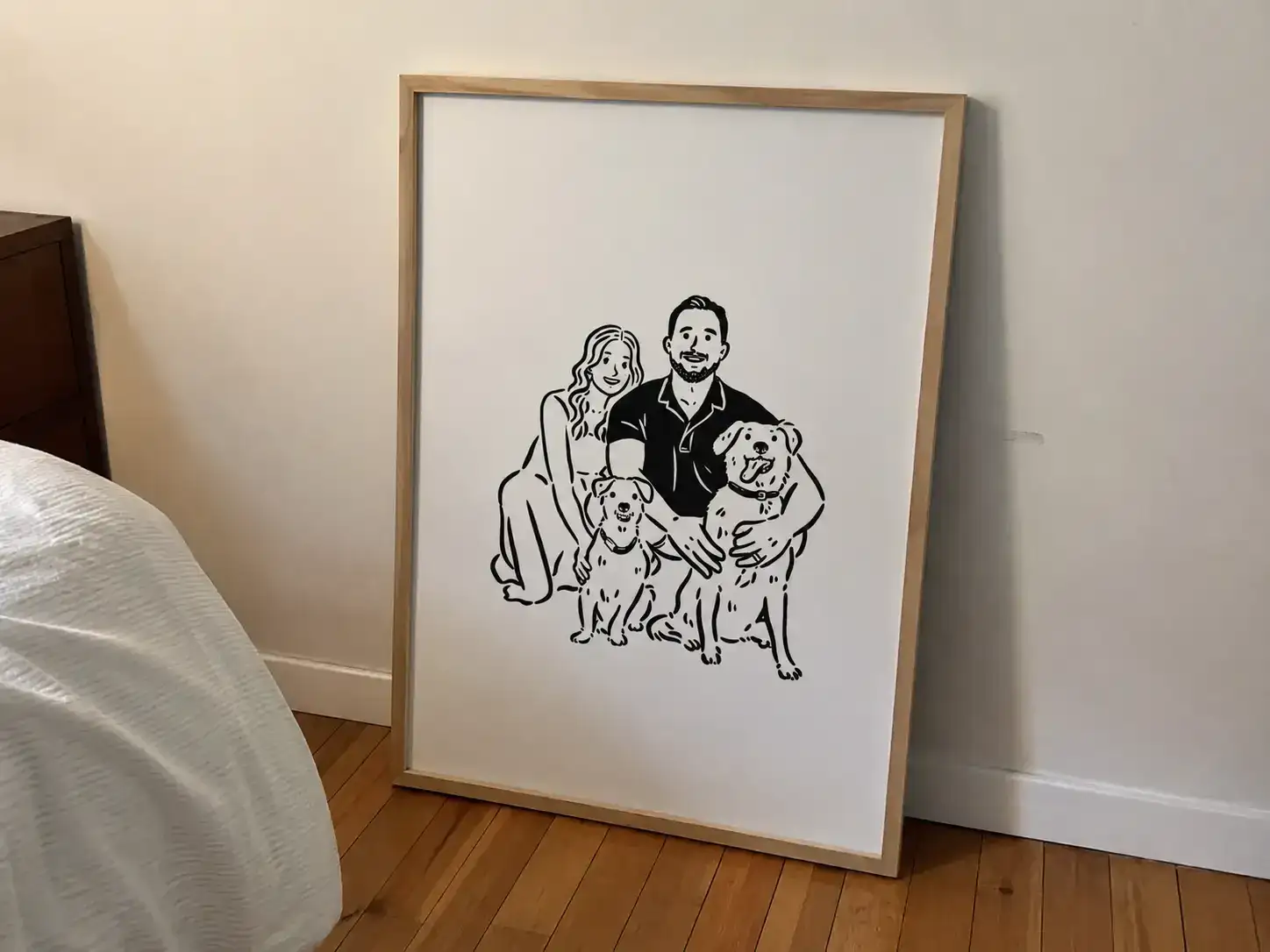
Sell a vertical illustrated family poster for up to four people. The shopper uploads one group photo, adds a family name and date, and chooses between two background treatments. The Blueprint preserves the number of people, relative placement, hair and clothing cues, and a quiet text area. Add the name and date as controlled text after generation.
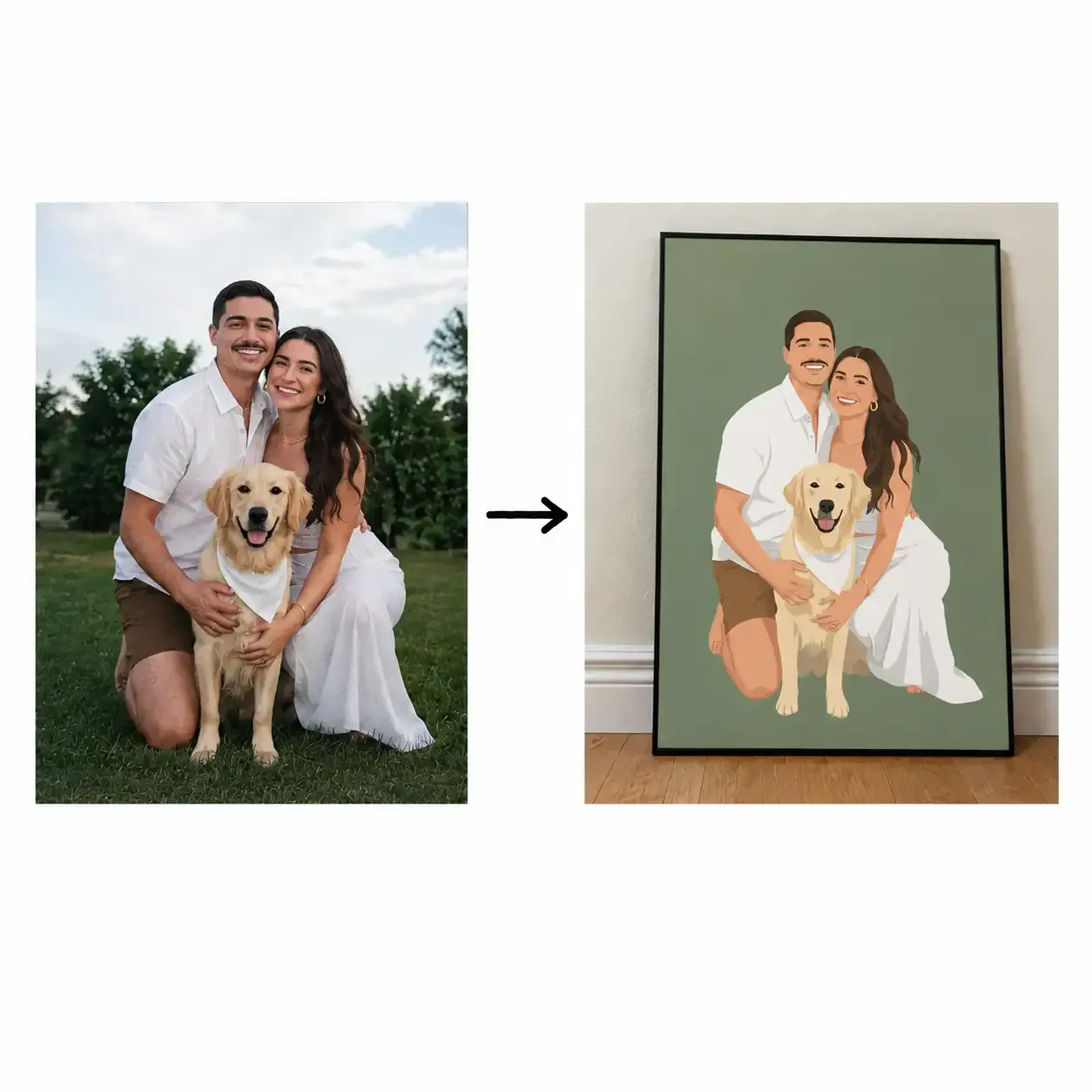
The preview shows the complete poster on the chosen product before checkout. The production file contains the approved artwork at the supplier’s print dimensions, not a room mockup, frame, or shadow. The Shopify line item stores the selected text and revision.
How to launch it step by step
- Choose the audience and occasion. Start with one message such as a new-baby gift or anniversary poster rather than writing for every family event.
- Set the supported group size. Pick the maximum number of people your composition and tests can handle. State whether babies, pets, or separate photos are supported.
- Choose the exact poster variant. Record orientation, print area, bleed, safe area, sizes, supplier, shipping, and cost.
- Write the photo guidelines. Ask for a well-lit image with the faces visible, enough space around the group, and no heavy blur or deep shadows. If you accept several photos, explain how they should be framed and whether the final arrangement is guaranteed.
- Build and iterate the Blueprint. Start from a concrete design direction, generate a first version in Personalize.design, inspect the result, and refine the Blueprint until the composition is good enough to test with real inputs.
- Test the output guidelines. Check faces, subject count, crop, spacing, text, contrast, poster ratio, and the production file. Include difficult photos and the longest allowed family name.
- Connect the Shopify product. Run upload, generation, preview, approval, cart, checkout, and order creation. Test what happens when the shopper changes the size after preview.
- Validate the print file and sample order. Check the approved revision, faces, spelling, dimensions, safe area, colour, material, packaging, and delivery time together.
The Shopify product-personalizer guide explains the app workflow. The POD personalization guide explains supplier and fulfillment checks.
Start with photo guidelines before the Blueprint
Your first job is to decide what a usable input looks like. A good family photo usually has the faces visible, enough light on the subjects, limited blur, and enough space around the group for the final composition. Avoid promising that any upload will work. Explain what happens when a photo is dark, cropped, or too blurry to recognize.
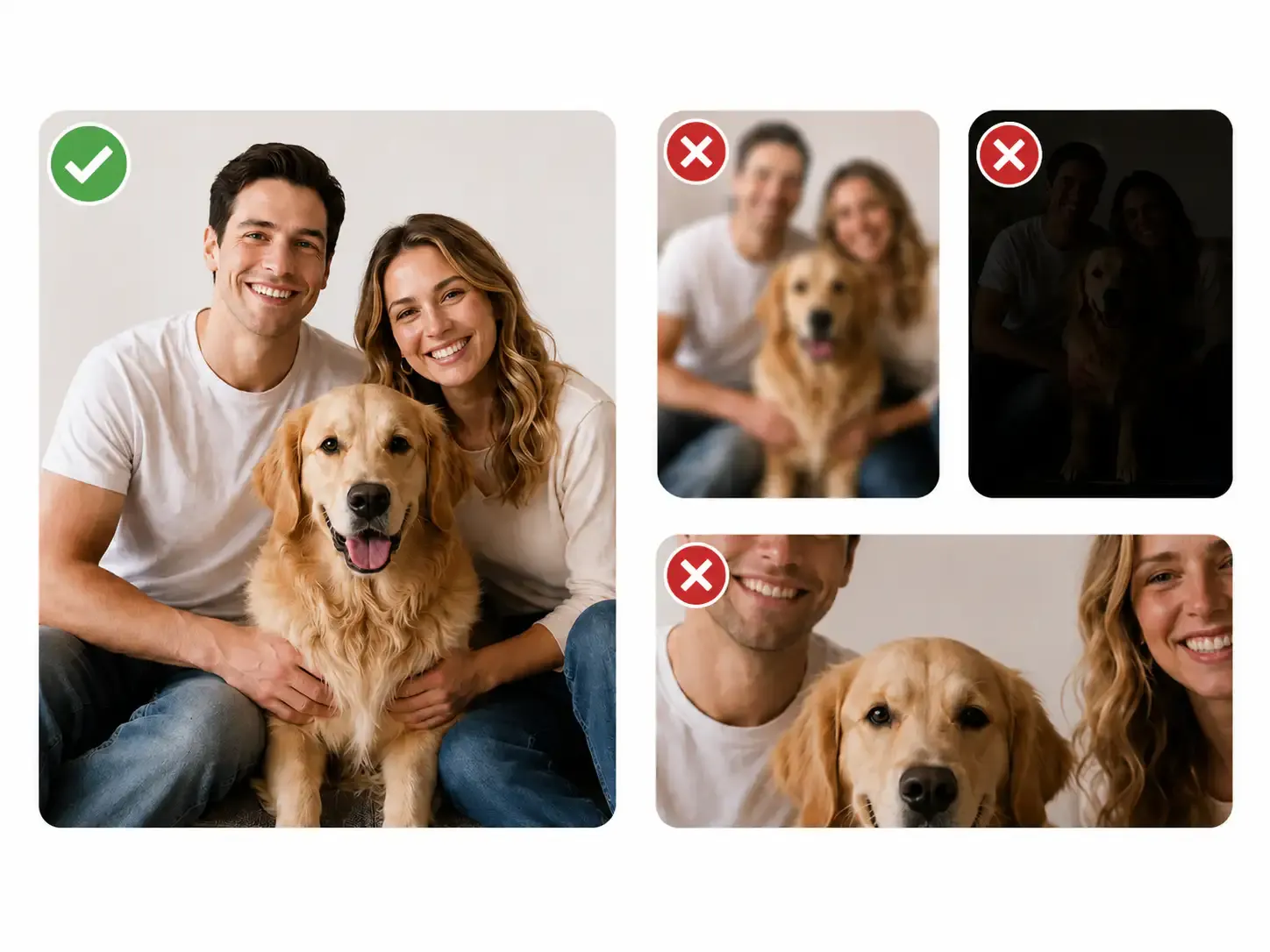
Use the same rules in the product listing, upload form, error message, and Blueprint. If the product supports four people, say so before upload. If separate photos are allowed, explain how they will be combined and avoid promising an exact pose.
Build the Blueprint with a real example
The Blueprint is not something you have to write perfectly from a blank page. A practical workflow is:
- Find a family-poster style or product idea on Etsy that already makes sense in your niche. Use it as a direction for the composition, occasion, colour treatment, and product format. Do not copy another seller’s protected artwork or listing.
- Use a reference image that you own or have permission to use when you need to communicate the desired style, layout, or level of detail. The reference helps the model understand what “family poster” means for this product.
- Create the first Blueprint and generate a test in Personalize.design. Start with one group size, one background treatment, and a small set of fields.
- Inspect the output. Look for hidden faces, merged people, inconsistent clothing, bad spacing, unwanted text, weak contrast, or a composition that does not fit the poster.
- Iterate. Adjust the instructions, reference image, model, input rules, output format, or text layer. Generate again and keep testing until the result is good enough for real customer photos.
The internal AI design prompt generator can create a structured starting prompt from a reference design. It does not replace testing: the right Blueprint depends on the image model, the poster format, the customer inputs, and the quality bar you set.
Create a starting Blueprint with the AI design prompt generator
Check the result against output guidelines
After each generation, check the result against the product you are actually selling:
- every supported person or pet is present and recognizable;
- faces, hands, feet, and important clothing details are not cut off or merged;
- the group has enough space and a stable composition at the chosen poster ratio;
- the background supports the subjects instead of hiding them;
- names and dates are legible and stay inside the safe area;
- the approved artwork can become a clean print file without the room scene, frame, or mockup shadow.
The first output is a test, not a promise. Refine the Blueprint and run it again when the model changes the composition, misses a person, or produces an image that looks good on screen but will not print well.
Connect Shopify and test fulfillment
Run upload, generation, preview, approval, cart, checkout, and order creation in one session. The approved revision should remain attached to the Shopify line item and point to the exact supplier product and variant.
Then place a sample order. Check faces, spelling, dimensions, safe area, colour, material, packaging, and delivery time. The production file should contain only the print artwork at the supplier’s required dimensions, not the room scene, frame, or shadow from a mockup.
See the buyer experience
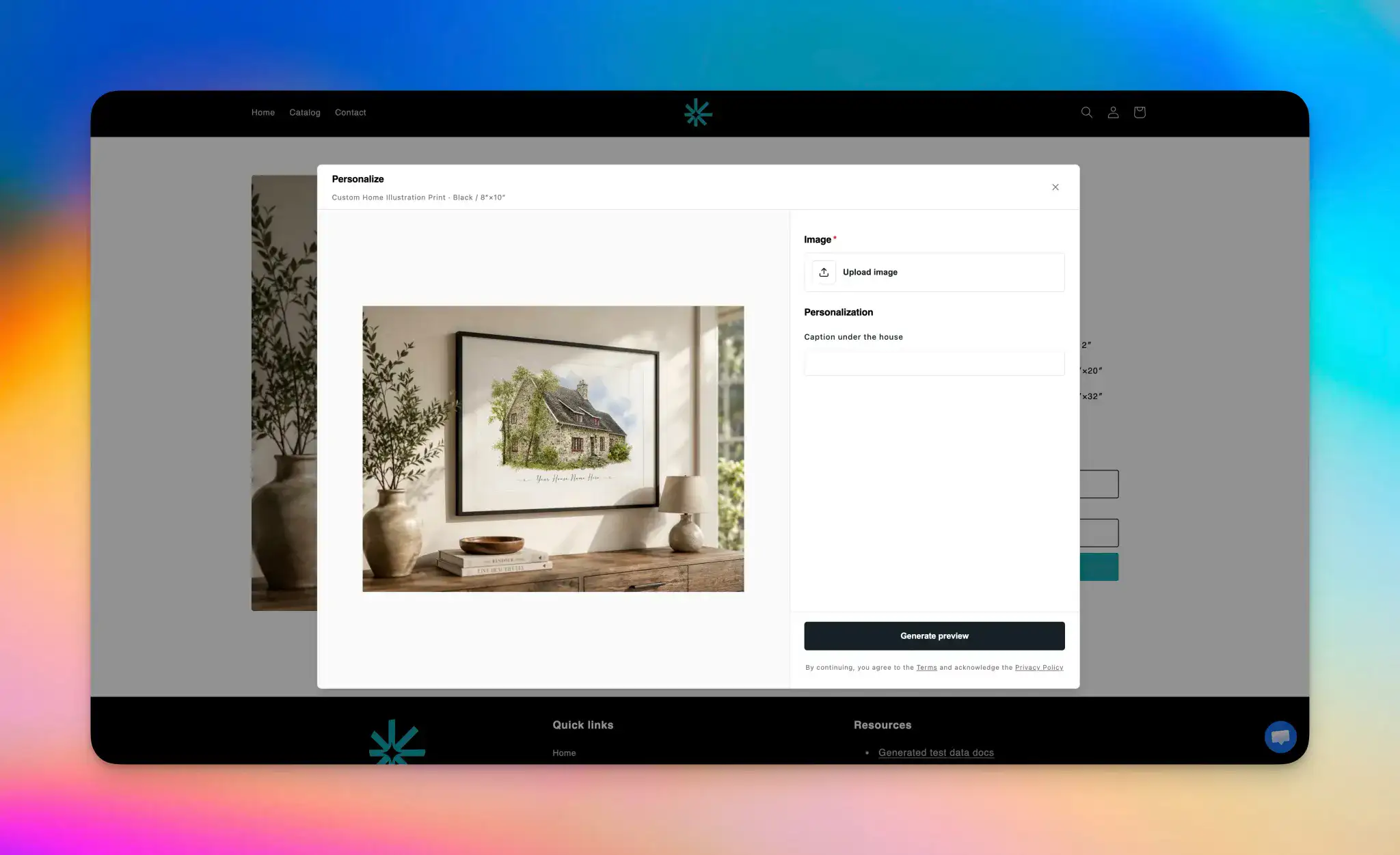
Want to see what the process looks like from the buyer’s side? In the demo store, the shopper uploads an image, adds their personalization details, generates a preview, and sees the final result on a real product mockup before checkout. This is the experience your product page should make clear: the shopper sees what they will receive before they pay.
See the buyer experience in the demo store
What should the product page say?
Show one complete family example before asking the shopper to upload a private photo. Put these answers next to the personalization form:
- How many people does the tested layout support?
- Can the product include babies, pets, or separate source photos?
- What photo angle, lighting, and resolution work best?
- Where will the family name and date appear?
- Does the shopper approve the finished poster before checkout?
- How many retries or corrections are included?
- How are uploaded photos used and retained?
- What are the production and delivery estimates for the selected poster?
Show the exact poster orientation and format. A mug or generic lifestyle image does not prove that the faces, text, and crop work on the product being sold.
What can go wrong?
| Risk | Control to add before launch |
|---|---|
| The group is larger than the composition supports | State the maximum before upload and route larger groups to another product |
| A face is hidden or too small | Reject the input and show what a usable group photo looks like |
| Faces merge or change | Test the maximum group size and offer a bounded retry |
| Long names collide with the artwork | Set a character limit and use a controlled text layer |
| The preview is not the actual poster | Render the chosen size and orientation with the real supplier mockup |
| The production file differs from approval | Lock the approved asset revision to the Shopify line item |
What should you check before pricing it?
Include printing, shipping, Shopify and payment fees, Personalize.design fees, AI generation, retries, support, refunds, and reprints. Larger groups can require more attempts, so model the maximum supported size rather than assuming every order has the same cost.
Use the personalized product margin calculator to model low, expected, and high-cost sessions. If one product needs frequent manual correction, raise the price, narrow the input rules, or keep it as a reviewed premium service.