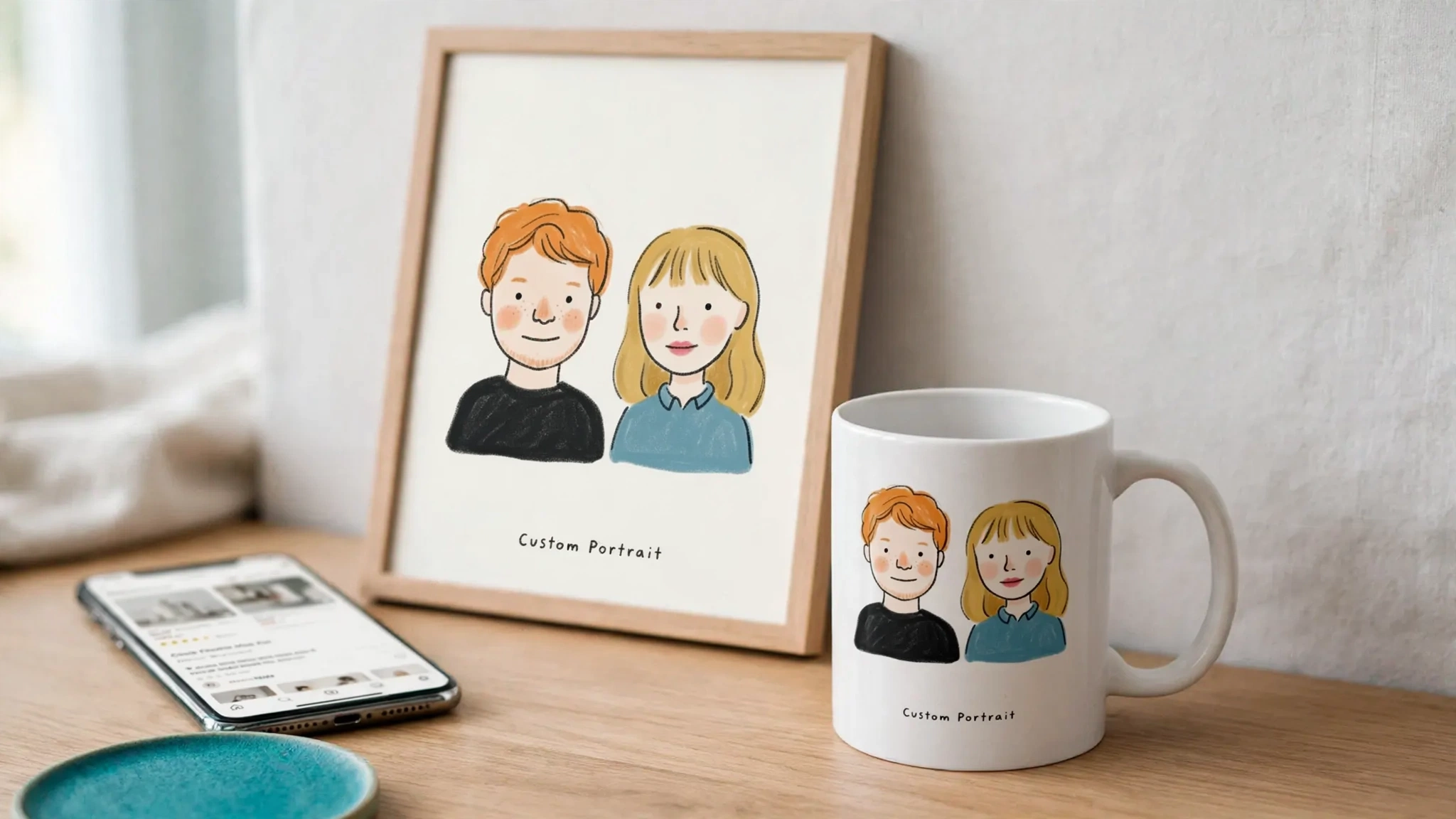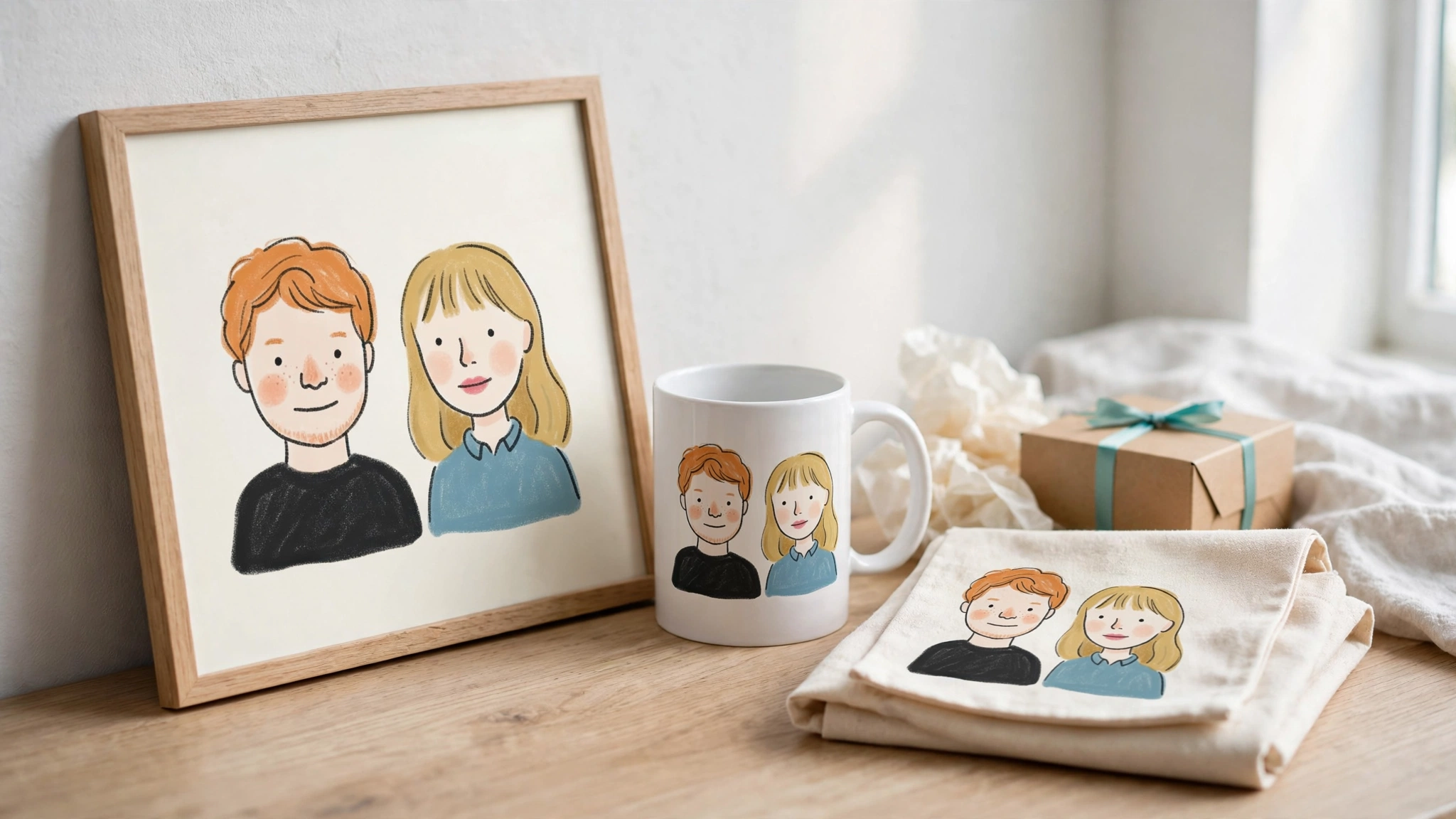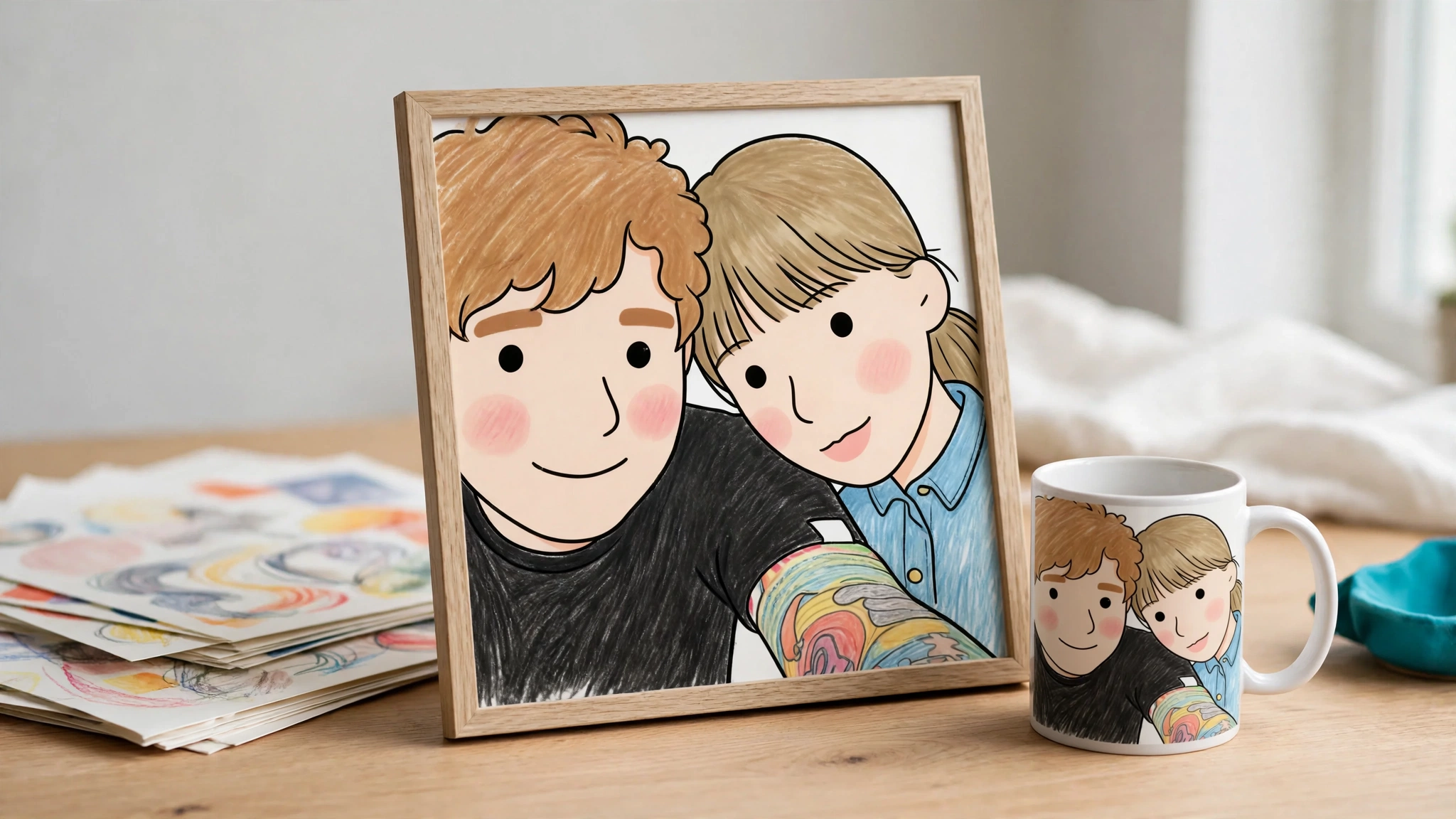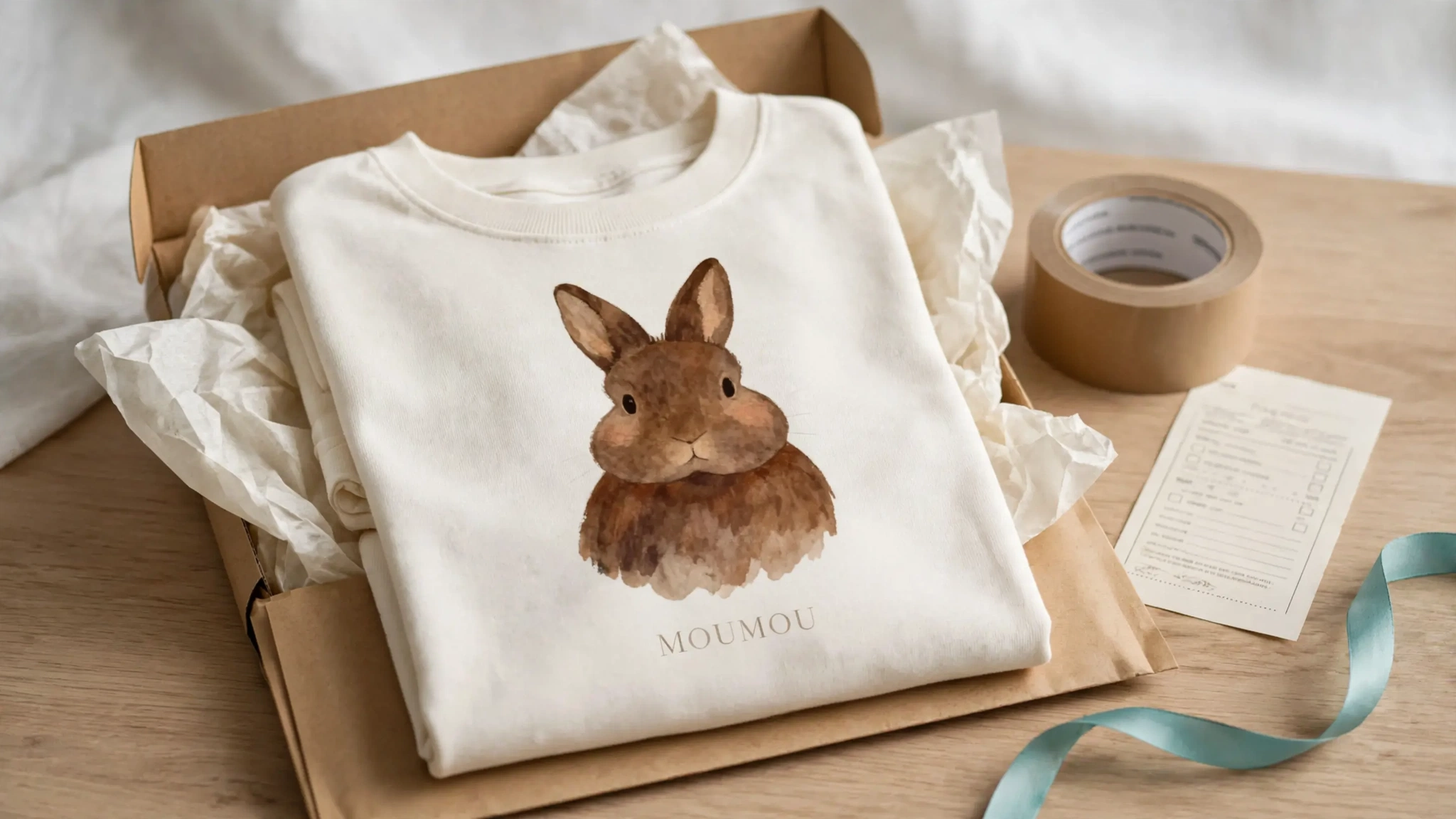
Printify AI personalization on Shopify works in two layers. Printify gives you the catalog, print providers, production and shipping, plus free built-in personalization where shoppers type text or upload a photo into fixed layers. What Printify’s Shopify flow does not do is turn a shopper’s photo and answers into new AI artwork, show it on the product page before checkout, and send that exact file to Printify after payment. For that you add an AI personalization app between the shopper and the Printify order. This guide shows where each piece sits, how to set it up, what it costs, and what breaks.
All Printify and competitor facts below were checked in October 2026. Confirm in your Printify dashboard before you launch.
What “AI” means in Printify AI personalization
“AI” means four different things in this search. Mixing them up is the most common setup mistake.
| What it is | Who uses it | When it runs | Shopify? |
|---|---|---|---|
| Printify AI Image Generator: text prompt to base artwork, free; 15 attempts per day, 1024x1024, upscaled at production (help center) | Merchant | Before listing | Yes, as a design tool |
| Automated personalization: shopper types text or uploads images into predefined layers; no generative AI described | Shopper | Before purchase | Yes |
| AI-assisted personalization (beta, not available to all users): AI applies the buyer’s text request to your design during order review; manual-personalization products only | Merchant | After the order | Check availability for your channel |
| Third-party shopper-facing AI: shopper photo and answers become new artwork, previewed before checkout | Shopper | Before purchase | Yes, via Shopify apps |
If you want to sell AI Printify products where a shopper’s dog becomes a watercolor portrait before they pay, you need the fourth row.
What Printify handles well
Printify is a strong fulfillment backbone, and nothing in this setup replaces it:
- Catalog and variants: blank products, sizes, colors and print areas per product.
- Print providers: a network of facilities, with base cost and production time varying by provider.
- Production and shipping: Printify prints, packs and ships, and tracking flows back to the sales channel.
- Native personalization: Printify’s personalization page says it is “100% free” and needs no third-party apps.
One naming warning: Printify uses “Blueprint ID” for a catalog product. In Personalize.design, a Blueprint is something else: a reusable AI template made of a prompt, customer fields, an optional reference image and model settings. Different object, same word.
How native Printify personalization works on Shopify
Printify’s help center (automated personalization and what personalization is) describes this flow:
- Install the Printify app on Shopify.
- Add the personalize button app block to your default product template. The button only appears on products with personalization layers.
- In Product Creator, add text or image personalization layers. Shopper image layers accept PNG, JPEG or JPG up to 100 MB. Shoppers see a live mockup preview of their text and images.
- Publish. Once enabled, personalization cannot be switched off for that product.
- Personalized orders are held for review by default. In your Printify store settings you can enable buyer-approved personalization, so orders whose shoppers approved the live preview skip your review, and you can submit them automatically after 1 hour, after 24 hours or at a set time each day (submission settings). Edits you make during review stay on that order and do not change the product.
Note: Printify’s Personalization Hub works only on newly published listings, so an existing Shopify product has to be recreated.
Printify distinguishes manual personalization from automated personalization. Both work well for Printify personalized products like names, dates and photo placement. Automated personalization places the shopper’s text and images into your layers. Manual personalization means you create each design yourself after the order. Neither generates artwork from the shopper’s input before checkout. See live preview vs AI-generated preview for the difference.
What AI personalization adds on top of Printify
An AI layer changes what gets printed for each shopper, not just where text sits:
- Generated artwork: the shopper uploads a photo and answers a few fields (pet name, style, background color). A Blueprint turns them into a new design.
- Preview before checkout: the shopper sees the generated artwork on the product page before adding to cart.
- A print file tied to the order: the chosen result travels with the cart line, so the paid order carries the exact artwork.
- Merchant control: you set the prompt, the fields, the model and how many previews a shopper can generate.
This is the gap Printify’s Shopify flow leaves open. For the broader workflow, see our AI product personalizer for print on demand guide, or start with what an AI product personalizer is.
Is AI-generated artwork allowed on Printify?
Yes, with conditions. Printify’s own article on whether you can sell AI-generated art treats AI art as sellable, as long as it does not infringe someone else’s rights. The same content rules apply to every personalized order: a shopper upload that contains a trademarked character, a sports logo or someone else’s copyrighted photo can be rejected in production, and the liability sits with you as the seller.
Two habits keep you clear. Write Blueprint prompts that describe a style (“loose watercolor, soft paper texture”) instead of naming brands, characters or living artists. And add one line near the upload field asking shoppers to use their own photos, with no logos or characters.
Setup: Shopify, Printify and Personalize.design step by step
Here is the flow in Personalize.design, with Shopify as the sales channel and Printify as the supplier. Printful is also supported as a supplier, connected by signing in to Printful and using the same Blueprint and order flow; this guide sticks to Printify.
- Connect Shopify. Install the app; it adds a Personalize Button theme app block to your product pages, styled from your theme’s buttons.
- Connect Printify. Paste a Printify API token and pick the Printify shop to use (the token is stored encrypted).
- Sync products and print surfaces. Sync your Shopify products, match them to Printify, and load each product’s print surfaces, built from Printify’s views and placeholders (Printify calls them print areas).
- Create a Blueprint. Start from the starter library (for example Cozy Pet Watercolor, with Pet type and pet name fields) or write your own prompt. Fields appear as chips in the prompt: text, number, color and choice. Draft prompts quickly with the free AI design prompt generator.
- Test-generate. Run up to four outputs per test on the unsaved prompt, with a cost estimate shown before you run.
- Assign and publish. Attach the Blueprint to the product, preview it, then publish personalization.
- Shopper previews and buys. The shopper uploads a photo, fills the fields and watches the preview generate. The result is added to the Shopify cart line.
- Paid order goes to Printify. When Shopify reports the paid order, the item is submitted to Printify as soon as its artwork is ready. If you prefer to check each design first, switch the order handling mode to review before submit in Settings.
Install the app and connect Printify →
Why print surfaces matter
Many personalized-order problems are placement problems, not AI problems. A mug, a poster and a hoodie each have different printable areas and mockup views, and the same product can have different print areas at different Printify providers. If generated artwork is square and the print area is a wide mug wrap, something gets cropped.
Checklist before you publish a product:
- Confirm the print area and recommended pixel size in Printify’s editor for the exact provider you use.
- Match the Blueprint’s aspect ratio to the main print surface.
- Check the editor guide status for each surface (available, missing, unsupported or error).
- Turn on background removal in the Blueprint if the design should float on a colored product.
- Place a paid test order and inspect the file Printify receives.
Example: a pet portrait poster on Printify
Here is the full path for a framed watercolor pet portrait, from the Printify product to the paid order.
- Printify product: a poster from the print provider you choose, with the print area checked in Printify’s editor; synced as one “front” surface with guide status Available.
- Blueprint fields: pet name (text), style (choice: watercolor, line art, vintage engraving), background (color palette you define).
- Shopper upload: one clear photo of the pet. Accepted formats include HEIC, so most phone photos upload directly (PNG, JPEG, WebP, HEIC, HEIF and AVIF, up to 20 MB and 10,000 px per side).
- Preview limits: by default a shopper can generate 5 previews per product and 15 per session, resetting after 60 minutes. You can change all three in Settings.
- Order review: each order item shows the customer input, the final asset and an estimated DPI. You can replace the asset, undo the replacement or download it. Print-area upscaling is on by default.
- Fulfillment: Shopify reports the paid order, the item is submitted to Printify with the generated file, and tracking returns to Shopify.
Illustrative margin: start from a retail price of $49, subtract your Printify base cost and shipping for that provider, the $0.45 Personalize.design per-item fee, and the AI cost of the previews the shopper generated. What remains is your margin before Shopify payment fees and your share of the $29 monthly plan.
The same pattern fits memorial gifts, family ornaments and house portraits. Our pet portrait use case covers photo rules and product page copy.
What it costs per order
You pay in four places:
| Cost | Who charges it | As of October 2026 |
|---|---|---|
| Printify plan | Printify | Free: $0, 5 stores. Premium: from $39/mo, or from $24.99/mo billed yearly, 10 stores. Enterprise: custom pricing (pricing) |
| Base cost and shipping | Printify provider | Varies by product and provider |
| Personalization app | The app | Monthly fee plus per-item fee, depending on app. Personalize.design: $29/month Launch plan + $0.45 per personalized item, 14-day trial for new stores |
| AI generation | The app | Per generated preview, including previews that never convert. Personalize.design bills AI usage pay-as-you-go under a monthly spend cap you set |
The cost most merchants forget is unconverted previews. If shoppers generate an average of three previews per purchase, your AI cost per order is three times the per-preview price. Per-product and per-session limits cap that exposure, so model your margin with a realistic preview count per order, not one.
Personalization apps that work with Printify
Each of these has real strengths. Pick by the product you sell. For the full field, see the best Shopify product personalization apps.
| App | Approach | Printify handoff | Pricing (as of October 2026) |
|---|---|---|---|
| Customily | Broad layer-based editor with AI tools | API; print file in about 30 minutes; orders arrive on hold for you to confirm (help) | From $49/mo plus $1 to $0.10 per item; 9-day trial (pricing) |
| Teeinblue | Configurable templates for POD catalogs | Direct POD integrations (check Printify support for your setup with Teeinblue) | $49/mo on Shopify; no transaction fee on the first 100 orders, then $0.40 to $0.10 per item; 14-day trial (pricing) |
| Podtrait | Shopper-facing AI, Printify only | Printify | Free install with $2 per unit (capped), or plans from $50/mo with 25 units included (listing) |
| Autopictura | Shopper-facing AI, any POD supplier | Supplier-agnostic | From $49/mo with 50 orders included, then $1.50 per order; generation may use your own AI API key (listing) |
| Personalize.design | Shopper-facing AI Blueprints with spend controls; Printify and Printful supported | Creates the Printify order automatically after payment; production follows your Printify submission settings; Action required with retry when blocked | $29/month Launch plan + $0.45 per personalized item + pay-as-you-go AI under a monthly spend cap you set; 14-day trial for new stores (pricing) |
If your products are mostly name-and-font templates, a layer editor like Teeinblue or Customily may fit better. Our Teeinblue comparison covers that trade-off.
Failure modes to plan for
Personalized orders fail in predictable ways. Plan for these before launch:
- Duplicate submissions. Shopify can send the same order webhook more than once. Personalize.design records each paid-order event and consumes the personalization reference once, so a retry does not create a second Printify order.
- Paid order, artwork not ready. Submission happens once the final artwork is ready. If it cannot be prepared, the item shows Action required.
- Blocked items. A missing surface mapping or a supplier error marks the item Action required. You fix the cause and retry from the order page. This is not zero-touch fulfillment, and you should check the orders view daily at first.
- Bad source photos. Blurry or dark uploads produce weak art. Test-generate with a poor phone photo before launch and add one photo tip on the product page.
- Surface not ready. A surface with a missing or unsupported guide is caught by the readiness check before publish. Fix it in Printify rather than shipping a cropped design.
- Out-of-stock variants. Printify providers go out of stock. Keep to variants you have test-ordered; Printify also caps a product at 100 enabled variants, so pick the sizes and colors you actually sell.
- Customer photo privacy. Shoppers upload pet and family photos. Uploads and generated files are stored privately and served only through short-lived links, not public URLs.
- Runaway AI spend. Set preview limits and a monthly spend cap before you drive traffic.
Start with one personalized Printify Shopify product
Pick one personalized Printify Shopify product you already sell, build one Blueprint, place one paid test order, and inspect the printed result before you scale. Our guide on how to sell AI-personalized products on Shopify has a launch checklist for that first product.
Install Personalize.design and connect Printify →
FAQ
Does Printify support personalized products on Shopify?
Yes. Printify’s help center describes manual and automated personalization on Shopify through the Printify app, a personalize button app block and personalization layers in Product Creator. Personalized orders are held for review by default, though Printify lets you skip review for buyer-approved designs and submit them automatically. Shoppers fill fixed layers; no AI artwork is generated from their input.
Does Printify use AI for personalization?
Partly. Printify has a free AI Image Generator for merchants (15 attempts per day, 1024x1024 images, upscaled at production, per Printify’s help center) and an AI-assisted personalization beta that edits a design during order review for manual-personalization products. Shopper-facing AI generation before checkout on Shopify requires a third-party app.
Do personalized Printify orders need manual approval?
With native Printify personalization, orders are held for review unless you turn on buyer-approved personalization. Customily sends orders on hold for confirmation. Personalize.design creates the Printify order automatically after payment when the artwork is ready (or holds it for your approval if you choose review before submit), and production then follows your Printify submission settings.
Can shoppers see an AI-generated preview before they buy?
Not with Printify’s built-in layers, which preview the shopper’s placed text and images. AI personalization apps generate new artwork, show it before add to cart, and attach it to the cart line.
What file quality does Printify need for personalized orders?
Check each product’s print area in Printify’s editor. Ask shoppers for a sharp, well-lit photo, and review the estimated DPI on each order item before production.
How much does Printify personalization cost?
Printify’s native personalization is free. Add the Printify plan, the app’s monthly and per-item fees (for Personalize.design, $29/month plus $0.45 per personalized item, with a 14-day trial), and AI cost per preview, then model it per order.
Sources checked October 2026: Printify personalization, pricing, AI Image Generator, AI art and help center pages linked above; Customily and Teeinblue pricing; Podtrait and Autopictura Shopify App Store listings.

Written by Kévin D
Founder, product designer and merchant. We turn practical product lessons into clearer merchant workflows.